

SlideShare to PDF — Download a Presentation as PDF
Steps
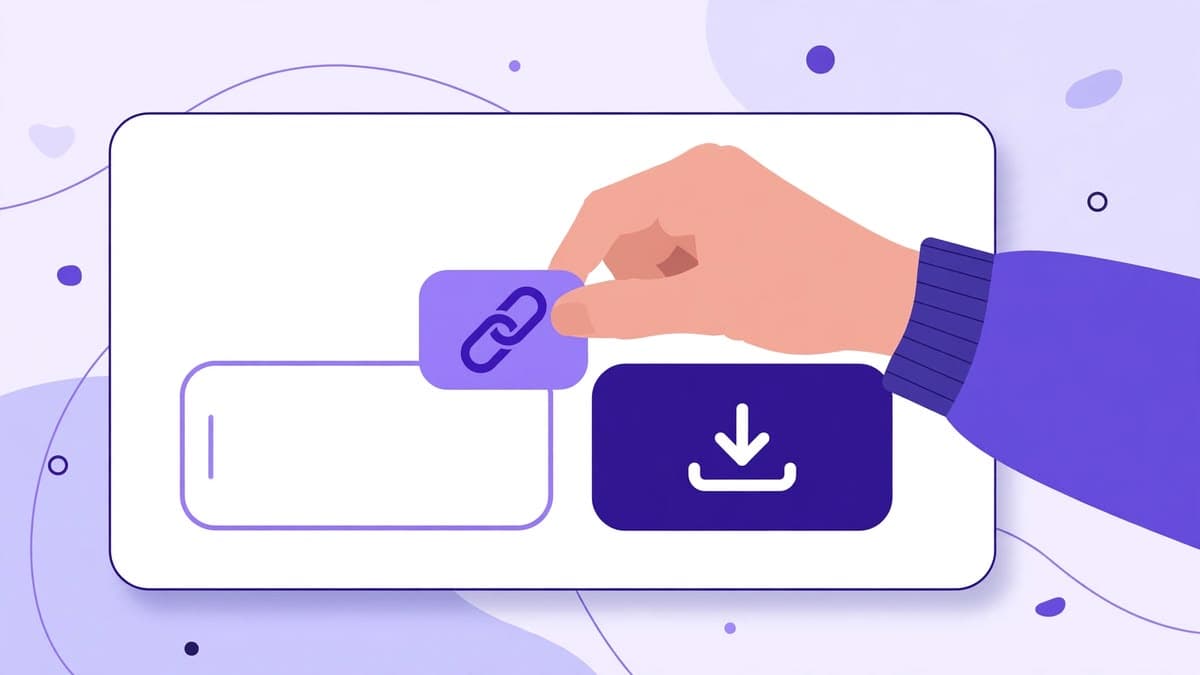
- 1On slideshare.net, open the public presentation you want and copy its page link from the address bar.

- 2On the home page, paste the link into the downloader and press Download.
- 3Wait for the preview — check the title, author, and slide count match the deck you opened.

- 4Press Download PDF and let the file save to your device.
Why PDF, not a screenshot?
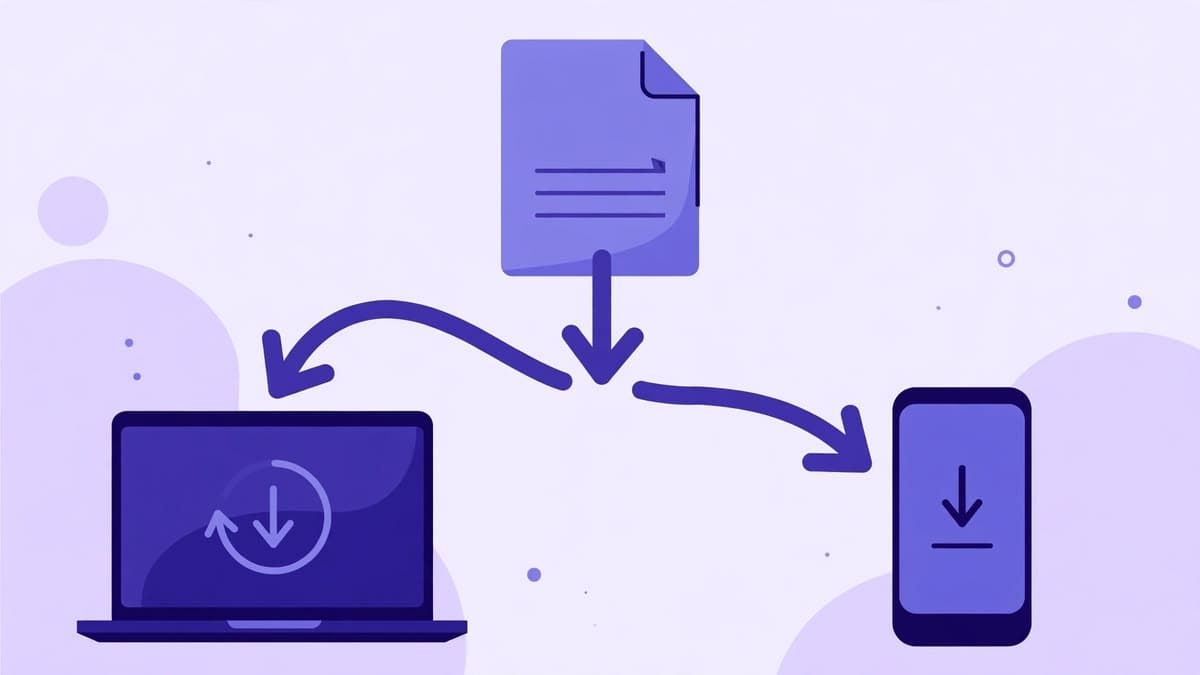
A screenshot only saves one slide at a time and loses order, text, and quality. A PDF keeps all slides in one file, in the original order, so you can search, print, or read the whole deck offline.
If a deck has many slides, the PDF generated here is built slide by slide in your browser. That is why very large decks can take a little longer — let the progress finish instead of pressing Download twice.
What if the PDF has no slide images?
Slide images are fetched through a server proxy at the largest size SlideShare serves for that deck, so browser CORS no longer blocks them. If an image still cannot be fetched, the PDF still contains the deck title, author, source link, and a numbered slide list, so you still get a usable file — but it will not contain that slide's artwork.
In that case, double-check that you pasted a presentation page link, not a search or profile link, and try again. If the deck is private, no PDF can be produced, and the tool will say so plainly.
PDF tips
On a phone, the PDF usually opens in your browser or Files app — look in Downloads if you cannot find it. On a computer, check your browser's Downloads folder and do not rename the file before it finishes saving.
Only download decks you have a right to use. A PDF copy does not transfer copyright: credit the original author if you quote or reuse slides.
Try the downloader now
No login, no signup. Paste a public SlideShare link on the home page and download it as PDF or PPTX.
Go to the downloaderQuestions
Frequently asked questions
Yes. Paste a public link, preview, and download the PDF with no login and no payment.